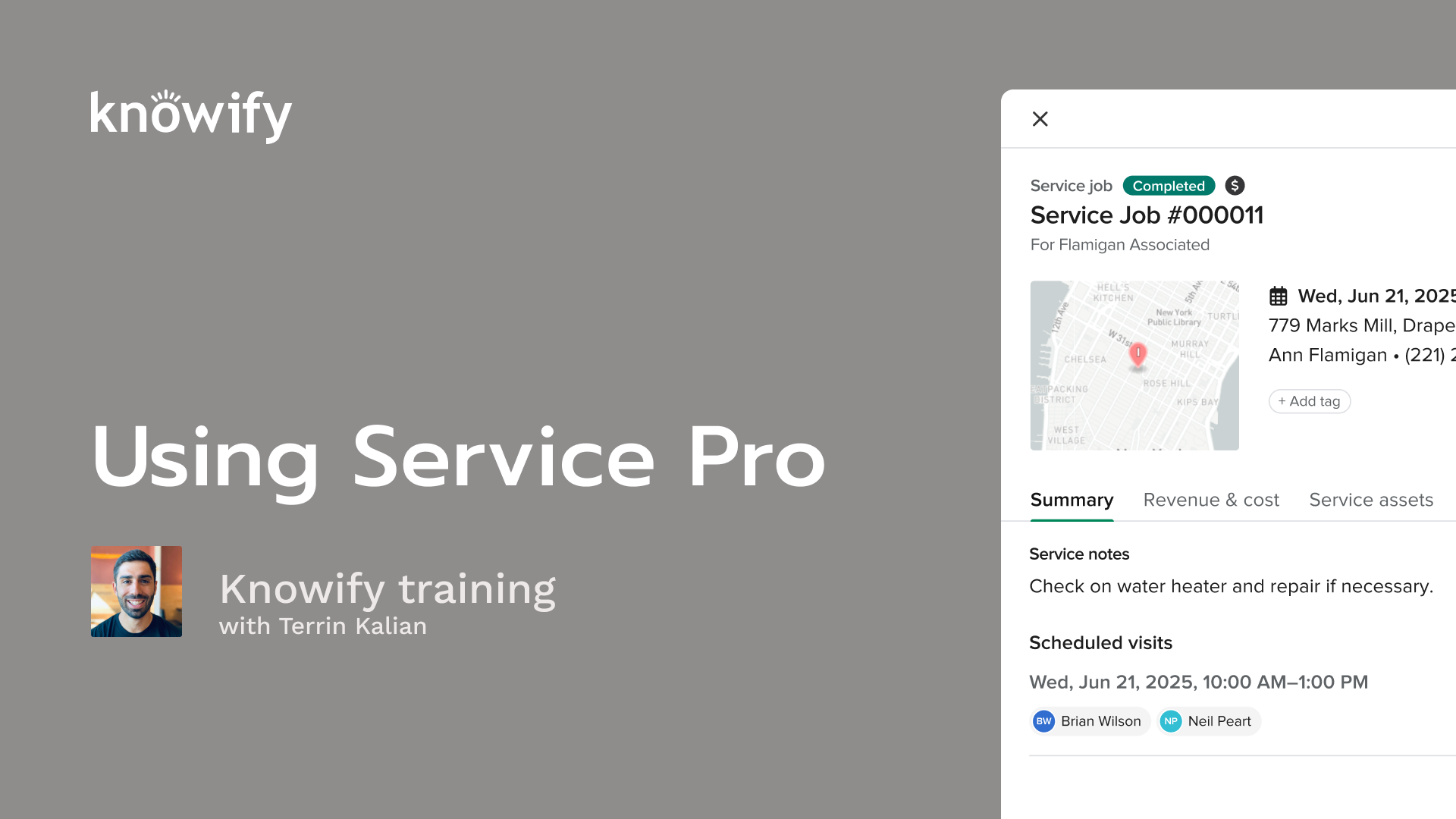
Knowify Service Pro is built for the quick in-and-out work that doesn’t fit your long contract jobs. Service calls, repairs, recurring maintenance visits, anything that lives in appointments rather than weeks-long schedules. In this deep dive, Terrin Kalian, Head of Customer Experience at Knowify, walks through setting up service jobs from scratch, scheduling visits, choosing between fixed-price and time and materials billing, and getting from dispatch to invoice without leaving the field.
What you’ll learn:
thanks everyone for joining in. For anyone unfamiliar, this is just another entry in our deep dive series. It's a set of webinars that we run twice every month where we pick a different topic and go a little bit deeper than our high level overview of different topics that we'll go into. This way, we can spend a little bit more time on each topic and make sure that we're doing our best to answer as many questions as you might have. And this week's topic is on service jobs. Service Pro, you might see it called throughout Novi. But it's the idea of these jobs that aren't our long form contract jobs, maybe, you know, instead of lasting several weeks, months, years. It's more of an in and out where it's a couple days that are involved in the job. Just a quick you know, we went to the site. We did the job. We left, and now we have to invoice and see how much we spent on it. If you're unfamiliar with me, my name is Taryn. I've worked in NoFi for coming out eleven years now. And my job is just making sure that everyone's as happy as possible with NoFi, whether it's the company, the product, you name it. And I am located in a very rainy and cold Denver today. May have worked with me here and there in the past. I like to join our calls and kind of make sure that I'm hearing the feedback that we're getting, in real time as well. So, that's me. And what we'll do is kind of go through a slide deck. I like to kind of start by introing the topic and getting some additional information that backs the demonstration aspect of this laid out. So we'll discuss, you know, what is Service Pro, what are service jobs for, what are the different parts that are referenced when we create service jobs, and we'll discuss the different ways that you can view your service jobs. Big improvement we made a while back is just redesigning the service jobs part of nullify so that you can make it a little bit more accustomed to how you like to view your jobs. You know, maybe you have a different priority than other people. Maybe different people in your company have different priorities. We'll cover things like that. Also, discuss the concept of maintenance agreements, which is basically like a bunch of service jobs that are locked together into a single contract. So this is really handy for things like recurring appointments. We see it popular with things like lawn maintenance, sprinkler head inspection, things like that. We just have these recurring appointments set up, scheduled, invoiced to the customer. We'll also discuss the concept of service assets. So a lot of the times when we're doing work, it's always on the same piece of equipment that we've installed or someone's installed at a customer's location. So we'll go into that with a little bit of detail as well. And, also, I'll try to pull up the mobile app version of Noify so we could see what this all looks like from the field as well. Then I'll do my demonstration inside of Noify. And if you have any q and, questions, you could throw them in Zoom's q and a. My associate, Vin, answers a lot of the questions through the webinar itself, but then anything else that's longer form or requires me to pull up the screen for it, we'll, answer those at the end. So any questions, just throw them in the q and a, we'll make sure that we get everything answered. All of that being said, I'll go ahead and get us kicked off with what is a service job? What is Service Pro? And I mentioned at the top, but one thing that separates our service jobs from our contract jobs more than anything else is the amount of time spent at the job. If it's something that you're gonna need some complex tracking on, if it's something that is gonna takes, like I said earlier, weeks, months, quarters, years, you're probably gonna wanna use the contract jobs functionality. But if it's a series of appointments, quick in and outs, things like that, that's where the service jobs really come in handy. I always say, like, if I'm working, you know, in electrical, I might get larger contracts where I'm putting the wiring in an entire warehouse, but I might still have a division that does, hey. My fuse is blown. Can you come, you know, check it take a look at this? Can you make sure that the lights can turn on? And that doesn't require as much, planning and, quoting, budgeting, things like that. But, we do still wanna be able to track that job, invoice the customer, and have all of that functionality. So there's a lot that goes into it, as far as what's possible in service jobs, but we also do have some limitations. Like, we don't actually budget. We don't categorize the cost. It's just the overall cost of the jobs, things like that. And these are always scheduled out in what we call visits. They're a lot like the assignments in Noify where instead of saying this job will last from the fifteenth through to the twenty second, this is more I need this person here at this time. So you can kinda see it's, again, a little bit more specific. It's a little bit more simple as far as how we set these things up, and it can really be a nice easy way to create a quick job without having to do too much extra planning and effort into setting up the job itself. Now, again, a lot of the difference here comes into the idea of what functionality is available in our service jobs versus our contract jobs. And so that's where we get into the idea of things like our budgeting, like having complex contracts. We do have the ability to create quotes on service jobs. But if we need to do progressive invoicing, if we need complex cost plus or variable billing, that's where we're gonna wanna end up creating our contract jobs. Contract jobs also allow us to set things up like change order management, which wouldn't be available in our service jobs, and then, setting up schedules that are more Gantt chart based as opposed to appointment based. Now when I'm creating the service job, there's gonna be a couple required fields just to make sure that this job exists in nullify, and we can start working it from there. And that's gonna be, the name of the job, the client who we're doing the job for, the address so we know the locations we could perform the work, and then, what we call billing type. So this would be if the job is fixed price or for billing time material. The name of the job can auto number. So if you wanna put in a custom name, that's great. But if you wanna just keep these, numbered and have it nice and simple that way, that's always an option as well. And then we'll have a lot of other optional fields that are available on service jobs, which is where we have things like, additional notes. Here's the description of the work that we're doing. Technically, scheduling and setting up visits for the jobs is optional, although I do recommend you do it as often as possible. And then doing things like mapping to individual service assets so we know what piece of equipment this is for. That's where we get into optional work as well. Also optional would be the concept of setting up a quote for the service job. Again, you do have the ability to set this up ahead of time, kind of like we do on a contract job, but it's not a required thing. It's only if it's something that you need to do when setting up your specific jobs. And I mentioned that we do this in both fixed price or time and material. When we talk about fixed price, it's the idea of we have the amount that we know that we will bill for this job ahead of time. So let's just say I have a service that is, like, removal of one tree, and I charge five hundred dollars for that. Then I can just set up the service job, call it One Tree, bill five hundred dollars, and that's great. But if our billing style is that, well, I'm gonna see who's there for how long, what they need to buy for the job, and then I'll apply a markup. I'll apply labor rates, and I will bill accordingly. We have this time materials option as well so that we can see what you add as cost on the job, and it'll automatically generate the invoice based off of what we've used. Then when we're creating service quotes, it can be pretty straightforward. It's very similar to what we'll do with our, fixed price contracts. But the idea is that I'll be able to put together a list of line items that are gonna be included, that are gonna be invoiced, and we can actually get a signature on that ahead of time before we start the work. So if you need a signature before you actually perform the work and then invoice, that is something that's available when setting up the service job. And it also is available on our time materials jobs that basically is just a signature of, I understand that I will invoice for the work completed, again, just to make sure that you have, approval from the customer before starting the work and spending money on the job. Now when we have our jobs in the system, we have all of our service jobs in. There's gonna be a variety of different ways that we can actually view this list of jobs. Right? We wanna make sure that it's not just a random list of here's a bunch of jobs that are in your account, regardless of status. And so we have what we call this table view, which is truly just a list view of our service jobs, But it can be filtered out so I could see, show me the jobs that haven't been invoiced yet. Show me the ones that have been invoiced. Show me the ones that are complete. Show me the ones that are incomplete. So I can mix and match these filters. So if I wanna say, show me everything that has been completed but hasn't been invoiced, we can use that to essentially say, well, this is a list of everything that now needs to be invoiced, and we can understand a little bit better what needs to be actionable from there. Similarly, I could say things like, I wanna see a list of jobs that have been completed and invoiced but have not been paid yet. Now I know where I need to collect money on the work that I have completed, across my service jobs in nullify. So this is a really powerful table. Again, it gives us a better idea of, really where we stand, as far as which jobs need our attention at any point in time. You also have the ability to flag jobs, which basically is just a way that says, to say this job needs more attention. The flag itself could mean whatever you need for your own internal purposes. For us, it's really just a generic way to see this is something that's, needs to, be looked at so we can filter out to flag jobs only. So maybe a flag means, this is a job that needs to be returned to or this is a job that needs to be rescheduled, whatever it's gonna be. So I could say, show me the flag jobs specifically and see which jobs require my attention. But since service jobs are very much something that needs to be scheduled, there's usually a list of things that are applied to our account so we could see here's the different blocks of jobs that need to be completed. We also have the service jobs view in a calendar view, which also could be filtered. But that way, I can see capacity a little bit more easily. Where do I have availability to add more jobs to the to the calendar? Who's working on the jobs? Just kinda see it at this level of what can we undertake. If someone calls in asking for a visit, where can we fit them into the schedule, things like that. And then we also have a scheduling queue, which you might be familiar with, where I could see unscheduled jobs that need to be added into the calendar. So I could see, okay. Here are all of the jobs I have now. This is what needs to be scheduled and drag the things that need to be scheduled into the open spots. And similar to the calendar view, I can have a team view. So if I'm not looking at show me all the jobs in my calendar, in a given week, something like that, and instead, I wanna look at a day and say, I wanna make sure everyone has something and see where there's open gaps. This is where I could see, like, oh, Brian is going to be free starting at eight fifteen on February fifth. I can kinda just see that high level and get a better idea of, you know, where we have the availability to add more jobs into our calendar at any point in time. Then the map view is gonna be handy in cases where we are looking at our map and wanna say, okay. Where are the jobs most clustered together? Maybe this is something I can use to help me, understand, which jobs should be done by which resources to make sure that, we don't have people driving past each other back and forth across town, to get to all of their different jobs. This can help us a little bit more around making sure that, resources are being as, efficient as possible with their use of time and, in this case, more specifically, travel time. Now we also have inside service jobs. Once you get past our views, the concept of maintenance agreements. This is where we have, what is effectively a higher level contract for individual jobs, appointments, however we wanna look at it inside the job itself. So we have our contract jobs where we could say, here is for the installation of x, y, and z, or this is for, you know, repair of this device, whatever it's gonna end up being inside our contract. But another type of contract that we're also often gonna be signing is something like, for a thousand dollars, I will visit, once a quarter to make sure everything's functioning appropriately. And if it's broken, I will fix it. Just an agreement that you have with the customer to make sure that things are running, and it's not something that is going to be slowly worked on over time, slowly invoiced. It's just gonna be, here's the agreement of how much you're gonna pay us for these individual appointments that we will schedule and take care of for you, in whatever the time frame or, frequency you need. When these are set up, they will it'll give you the ability to automatically schedule, basically, have Notify add things to the schedule or set up, pending tickets that need to be scheduled, things like that, so that when you're checking, okay, what needs to be done, you can see, well, here's a maintenance contract that's due for its appointment. Now let's get that on the calendar, things like that. And so I think these are really powerful things to just make sure that we're staying on top of all of the work that we've agreed upon with our customers, beyond just our larger single project contract work. Then in addition to the service jobs themselves, we also have the ability to generate service assets, which are gonna be individual pieces of equipment at the customer's location. So the idea here is I can say, well, we installed this water heater. Now I'm gonna sign a contract for maintenance to make sure it's running. And if I want to then have another appointment affiliated with this, water heater three years down the road, instead of me just sending someone out to do all this inspection, see what has been done in the past, we actually have the ability to say, okay. Show us the history of everything that we've done in Noify on this piece of equipment, on this asset so I can then more quickly and easily get an understanding of what anyone needs to know, when they go out to work on that specific piece of equipment. And so it's just something to help us, go into any of these service jobs with a little bit more knowledge and keep track of, everything that's, been relevant to this specific device that will help us troubleshoot, fix, repair more easily. And, again, a lot of this is available on mobile as well, so we have the ability to generate service jobs, create our service quotes, view jobs that have been assigned to us. We can invoice these service jobs directly through, through the mobile app as well. Really, anything that I might need to do in the field should be available via the mobile application. And so from the app, I can enter my time, my purchases, that I submitted against this job, things that'll be invoiced eventually. I can, see any additional notes. I can, again, view that service asset information. Here's some info you might need to know about this specific thing that you're working on today. And then from the app, we can also mark it as complete. So maybe someone in the office, is due to invoice. Maybe that has some kind of automation for, notifying people that something has been completed. We can add follow-up appointments, things like that. Just really get as much management of the, service job as we can from, in the field. And, again, we do have the ability to create the job with just as much detail as if we were creating it on the web application. So I could be in the field and say, okay. I just got assigned another job. Someone give me a call. It hasn't been created in the office yet. Let me generate this, via my phone and have that available in the office for whatever the next steps are or if it's just for tracking. But, again, I always think it's best to kinda show these things by, pulling up the account itself. So I have my account here, and, I'm gonna jump right into service jobs. And if you're on this webinar and you don't have the service jobs functionality on your account, definitely reach out to our team. We can definitely add it for you. It's an added, feature to your Notify account. We're, basically, it just gives you the ability to access this screen where you can generate and, track all of your service jobs. And we'll start in our table view where I can kinda just see, all the different jobs that are relevant. I can, pick and choose how I want this to be sorted. So with no dates set, this is just all of the jobs that I have in my account. But I can also say, well, I'm actually only interested in jobs that were created, let's just say, in this year so far. And, actually, inside this year, I'm only interested in the ones that were, completed. And then I actually wanna see completed, and then the invoice status is not invoiced yet. So now I started with a hundred and seven jobs. Now I have ten jobs that I've marked complete but haven't, actually been, invoiced. So I can come through here and say, like, perfect. It's time to, create the invoice for this job and, move on with the next steps based off of that information. I can also do based off of completed date. So show me all of the service jobs that were completed in this this year. So you could see it added two more. Maybe there are some that I added last year but only completed now. I could say, well, show me everything that's completed in this time frame, but I actually wanna see all that includes invoice and paid as well, and it can open up our view a little bit more. We also obviously have the simple search where I could say, show me any job with five zero two eight and filter down based off of the job name itself. So we have a couple different ways that we can kinda filter out this screen to make sure that we're seeing the jobs that we're interested in. This is where we can also see the calendar view. Here's a list of my schedule queue, my unscheduled jobs. So I could say, okay. Looks like we have a lot of availability. I clearly don't have anything scheduled in here. And I can add things to the schedule here. Click on the job, edit. We have someone coming today from noon until one, and then this adds it into the schedule. From this view, we have the ability to, also and you can see that this is filtered here as well, so that's why we're not seeing the job. I also have the ability to drag things around, move it. Maybe I something's changed. I need to drag this to tomorrow instead. And then, I can see which things are in schedule based off of the little icons and the coloring. So if I need to now add this to someone's schedule, perfect. That could be actionable from this screen. I need Alexa working on this one, and that'll add some color here and give me her initials next to the job so I know that that's the person who's responsible for this. Then when we look at the team view, this is where we see one day at a time, but we get that time resolution. So if I look at tomorrow where I just set up Alexa's schedule, I could see where we have some openings, and we can always add new things to the schedule this way as well. And then that last option is the team view where I could see the different things broken down into locations and click the jobs to get a little bit more information about them. I can click on different parts of the system just to make sure that we can get a location connection to all of our jobs as well instead of only being limited to, everything just as a list, inside, our account at any point. Now to go through the process of creating a job, I'll go ahead and hit add new service job. You can see it's suggesting a name here. That's just gonna be auto numbering based off of the information it has. So if I need to change this let's actually go higher just so we don't overlap anything. This is now gonna give us the ability to start the number right here instead. I can choose who the client is. This is gonna be a one construction. This is the PO number they send, and it automatically applies it to the a one construction address. If I need, I can update the address here. So if it sees that there's another address that's been used in the past, I could reference it. This is the email of the contact we have at a one. I can include their phone number and notes that's specific to the location. So if I need to say something along the lines of, hey. When you get to the house, you enter through the backdoor, that could be called out and could be referenced for any users on the mobile app. We also have the ability to assign who the lead resource is on this job. So maybe five people are working on the job, but Eli is the one who calls all the shots. This just lets us see this in our reporting so I can, see, okay, how's the performance of jobs in which Eli is the service lead. That ends up coming in handy from time to time just so we could see where we have room for improvement and things like that. We also have the ability to tag jobs. So if we need to get reporting on specific categories of jobs, just like we do with our contract jobs. We can, get our custom tags automatically set here. We can select what color this job is for inside the scheduling, tools just so we make sure that that's available. This is a largely requested, feature, so we do have that, back after, we revamped to the new version of service jobs. And then this is where I'll actually have the ability to select what type of work we're doing. So I discussed the concept of time materials versus fixed price. If I choose time materials, which I'll do for this ticket, this is where it's gonna have the ability to track all of the costs added to the job, the individual time entries, the purchases, the used materials, things like that, and have it automatically, generate the invoice based off of that information. Relatively new feature here, but you can actually apply a prevailing wage to your service jobs now. I'll cover that in another iteration of this in just a moment. Same thing with our service quotes, which I'll show you when we get to our fixed price jobs. Then defining the service request is where we're gonna basically write in the scope of work affiliated with this job. So I could say, client called about Bell Tree and backyard for removal. Also asked about some bushes that need to be removed from site. This way, the people on the app can actually see what they're supposed to be doing as opposed to just showing up mindlessly and saying, oh, what do you need me for? This is where we can write in any notes that are affiliated with this. It's also where we can affiliate with different service assets. I don't have any for this customer at this location, but this is where we would have the ability to say it's for this specific asset. Obviously, that's not as relevant for things like trees. When it comes to different installed equipment like sprinkler systems, water heaters, fuse boxes, you name it. This is where it's all available for reference. Then I have the ability to schedule this job as well. If I don't set up a schedule, we could still generate the job. So it's essentially pending in my account where I could say this is something that needs to be scheduled at some point. Hitting notify crew will send a message via push notification to anyone who scheduled on this, and then we can enable customer portal if I need a way for the customer to find the invoices and share documents affiliated with this job. And so that's the process of setting up a job. Now I can hit submit, and five zero two eight eighty is going to be available on my account. And I can do something like show me all jobs, created this year that, the current status is, unscheduled. And now I can see a list of jobs that need to be scheduled. From here to schedule the job, I could say edit. Visit happens today from one PM until two PM, and this is going to be assigned to John Higgins, who is the user on my mobile app that I'll be using. Now submitting this, adds it to the schedule. You can see that it removes it from the list of unscheduled jobs. So I could say now it show me scheduled but not completed. It'll show up here. And I could see this is the date it was created, its current status. And I could start adding things to the job. So this is where we would wanna go into the process of doing things like let me copy this. Saying allocate materials. I could say from our warehouse, we used wire, hundred and fifty units of wire. I can also go through the process of doing things like, adding time entries. So add time. The user here was John. And for time materials work in Noify, time needs to be approved in order for it to be invoiceable. And then once this is complete, I could say, mark this as completed. Now, again, it removes it from my filter that only shows scheduled. So now I wanna say, show me everything that's completed. And if I want, I can now say not invoiced. I can say, oh, here's what that is good to be invoiced. Click here. Create invoice. It automatically pulls things over. I can say we mark up our materials, fifty percent. Oh, I need payment terms. And we can generate that invoice and send it to the customer right through Notify here. We obviously can also create, collect payment, things like that. And, again, just to kind of keep seeing the different views here, now I could say, show me jobs that are completed, and invoiced but not paid. And these little icons will actually show a little bit more about this. So if I wanna take off this invoice status filter, I could see, a hollowed out sir or a hollowed circle is gonna be fully invoiced, hollowed with the dollar figure. The dotted line circle shows not invoiced yet. And if I click on this job, I wanna see all the transactions affiliated with it. This is where we get into revenue and cost. Gonna show me the value of the job, the current cost, and the resulting profit. I could pull up that invoice, say the customer has paid me. And let's just get an update here. And now I get a filled in circle to show this, job has been fully paid. So then same idea if I wanna say, show me everything that was completed in this time frame and the invoice status is paid. I have a feeling I don't do this too often, so it's just the one job. But that's where I can get an idea of, hey. Show me all of the jobs that we completed and collected money on in this time frame and just get a better idea of where we stand with that type of info. Now we also mentioned the idea of fixed price jobs. So I'm gonna quickly create another job. You can see it automatically numbered here for me. I'm gonna go through, couple different things here. I'll set the client address, skip past a lot of what we already covered. But now for service work, I'm gonna say fixed price. Now it's gonna prompt me for what the fixed price is. So if I wanted to say this is where we do inspection it looks like I don't have an inspection item, so let's see. Webinar widget install. Sure. So this is a widget installation. We charge seven hundred and fifty dollars for it. Let's just say we're installing two of these. I can add multiple items. We're also throwing in an insulated coffee cup, two of those. This is just generating a price for this work that we're gonna be performing before I actually create the job itself. I'm also going to apply a prevailing wage to this job just in case we wanna look at that, and I'm gonna turn on the ability to create a service quote. From here, I could put in terms and conditions, things that are gonna be relevant to this specific job that might need to be on the contract. And I'll go ahead and schedule this, and I'll have it start just after the other one. But I still wanna use John Higgins here and submit. Now you can see the quote was created today at one thirty three PM. I can click on here and make this active. I can view the the quote that was created. This is just the document. It is customizable if needed, and I can email it through Notify as well. And we have the ability to do things like change the invoice email that goes out, things like that. Can always be adjusted before we send this out. And we'll also get an additional notation, on these service jobs that have quotes on them where I could see this little target shows me that the service quote has been created for this job. So if I wanna see which jobs have and haven't been quoted yet, things like that, it is gonna be available by, the, icon that's, included here. And I believe we also, in our filters, have quote status of is there a quote, or is there not a quote, was it out for signature, has it been approved, things like that. Now inside this job, I will have the ability to set up my prevailing wages. This is a relatively new feature launched in the last month. So if we have specific prevailing wages and if you have more questions on prevailing wage, in particular, we have a whole webinar that covers just that topic, and I think it'll explain it, just the same way for the sake of service jobs, as contract jobs. But, basically, I could say the different relevant rates to each of the resources that I have in my account, things like that so that they're available for the people to track time to. But since this is a fixed price job, once our market is complete, we'll be able to invoice just the amount that we agreed on. But one thing I wanna show is the mobile view of this. And, obviously, my screen's bigger than a phone, but you do always have phone dot knowify dot com to have a similar version of this. Looks like I actually chose the same time. Shows how forgetful I could be here. Where inside the app itself here I might be able to reshare and make it look a little bit more like a phone here. Cool. So inside the app itself, I'll have the ability to, share the quote, edit the quote, things like that, affiliate this with a service asset, and I have the ability to mark this as complete from the field. When we mark as complete in the field, we can actually show the customer things like our internal notes, the work order that we initially put together, hours that were submitted, time that was submitted, things like that, and then give them the ability to finger sign. This now marks the job as complete on both the mobile as well as the in the office so that we could start a process of invoicing. I gotta make sure that I give this user permissions to invoice, so bear with me for just a moment here. Let's see. Do a quick little refresh. And now this is completed. I have the ability to go, add new invoice, and you'll see it automatically pulls in the quoted items from the quote into the invoice. I could say, perfect. Make sure you email it to the customer, finalize this, and send it to them right through Notify. And so this is the idea of just kind of managing as much as possible from the mobile app. Again, we do have the ability to, from the app, say, add a new service job. Let's say there's something that came up, while I was in the field. Someone sent me out to site. I got a call, whatever it's gonna be. I could say I just went to Chris Delgado's. I was at this client address. I can, assign all of the information like service lead, customer contact info. Let's just say it's, time materials, and, yes, I will be creating a quote for that. I can include notes. Customer called about leaky faucet, and the appointment will be today, and we'll be starting at, let's just say much easier on a phone, starting at two until three. And I'm gonna go ahead and assign myself to this. And now this generates the service job for me. I also have the ability to send a quote to the customer via text, via email. I can open the esignature portal directly from here if I need just so it doesn't have to happen separately. I can just have that conversation with them and just hand over the phone for them to digitally esign. And, again, you'll see we kinda have that ability to manage all of this from from in the field without having to jump around, back and forth between between the mobile version of Notify and the web version of Notify. It's all just available right from the app to kinda speed up that process for me. If I'm in the field and I need to record a new service asset let's say, this is my first time working with this customer and I need to reference this specific piece of machinery, I could say add service asset, and I'll do the same one from before. Water heater, ream. Here's the model number, serial number. I can put it when it was installed on. In basement, northwest corner, in good shape, relatively new. And I can include pictures of the service asset, additional, comments about it, things like that. And now as we continue to do work on this service asset, I'll be able to have all of those individual jobs, affiliated with it. Go ahead and mark this one as complete and go back to big nullify now for the rest of this just to kind of show how that works. So if I look at my service assets, I'm going to look at water heater, and this is the one for Chris Delgado that we just installed. And under service history, I could see that service job that we did everything a hundred percent from the field. All that information and record is all inside the office without us having to have done this manually, sent it in for someone else to enter. It's all just available here for my reference as we go. Now let's say we installed this asset, but now we want to have a contract with the, customer that, calls out the, recurring maintenance affiliated with this equipment. This is where I can get into my maintenance agreements and say, new maintenance agreement, for Chris Delgado, add the client's address. And it's gonna be somewhat similar to setting up a contract job in nullify. We create our proposal first, but we just need to get information about this. So how long does this contract last for? Until twenty twenty seven, this same date. All billing is due on receipt. We'll bill, once a month. And you could see that if we bill per visit, we can actually do it as time materials. If we do it as a recurring, billing, then, it's gonna default to fixed price. And, we bill once a month. We actually go out once a week. I want it automatically scheduled for me. This is in, the agreement summary where I can call out what specifically included. So inspection and maintenance of installed water heater to make sure it's always running, and I can call out the specific services that we'll be invoicing here. So if I wanted to say inspection and maintenance for let's just say every month we bill, fifty dollars, whatever it's gonna be. We can call that out here, and I can add multiple services here if the invoice needs to have more than one line on it. And I can call out that specific service asset. So all of the maintenance contract work is, recorded in, this service asset's history so we could see what's been done over time on this job. Now just like before, this can be sent out for signature. I'm gonna be just automatically creating this one, switching it to active, and this generates our first service job for me. But what I wanna do is go to the service history, and I'll be able to see that it created a weekly appointment for me, calling out which job and which appointment on that job. Here's the first one starting today. They're all scheduled in that. They're added to the schedule themselves, but they are scheduled for, they're scheduled without a person on it in this case. So effectively, what I'd be doing is going to each appointment and saying, edit this one. This week, it's gonna be performed by this person, and it adds it to the schedule. And it's available just like all of our other service jobs. So if I wanna say, show me everything that's scheduled for today, I could see visit one of maintenance contract three seventy five is scheduled for today. I could see who's scheduled on it, and its current status, whether or not it's been completed. So, again, this kinda gives us that ability to see a high level overview and just to understand what needs to be scheduled today, what needs to be invoiced today, just kinda kick things around and understand a little bit better, what needs attention, for the different people who are viewing our service jobs at any point in time. Now I know I ran through this fast, and there was a lot of knowledge in this. I want to make sure that we stayed true to the deep dive name, and I did show you as much as I could on all different topics. One last thing I'd like to show is that if you're ever looking to see this type of information in an exportable format so you can maybe review it, on paper or in a meeting, anything like that, we can use this view report button to get this in a spreadsheet, which could be customized as well based off of created dates scheduled completed and all of our other filtering here, so I can get it out of nullify, and into a spreadsheet for any additional means. But I'm gonna go see if we have any questions that came in during the q and a. It looks like Vin answered a good number of these, through the service itself or through the webinar itself. So maybe I'll be able to give some people some time back today, since that's everything that I had regarding our, presentation. I know this topic can be a lot, and it's definitely a part of our business that, requires a lot of attention and, you know, a lot of custom, workflows, things like that. We do our best to make the, processes as flexible as possible while also still making it easy enough to use. But if you ever have feedback, places where we can improve, things that we could do with service jobs to make it work a little bit better for you, never hesitate about reaching out. I love taking product feedback. I think making sure that everyone's happy with using Notify really means the most to me. So anytime that there's something that I could do, whether it's to the product itself or even to this webinar series to make it more knowledgeable and more helpful for you, never be shy about reaching out. Thanks everyone again, and I hope you have a great rest of your day. Take care.