Keeping jobs moving means your field crew and office staff can’t be chasing texts, photos, and crumpled receipts. In this training, Terrin Kalian, Knowify’s Head of Customer Experience, walks through the Knowify mobile app — the fastest way for crews to report what happened today and for the office to see it, cost it, and act on it in real time.
Whether you’re tracking time with check-in/out and GPS location, capturing purchases and receipt images, allocating inventory, or updating progress and tasks, the mobile app streamlines the flow of information from jobsite to office. Foreman tools make it simple to start/stop time for the whole crew, keep work orders moving, and maintain crystal-clear daily logs, all synced to your jobs, phases, and budgets in Knowify.
Key takeaways
Real-time field → office sync: Log time, purchases, materials used, comments, and photos from the app; the office sees it instantly for job costing and review.
Time tracking your way: Enter hours manually or use check-in/out with location capture; add notes, edit (with permissions), and route all time through approvals before it hits reports/accounting.
Foreman mode for crews: Start/stop clocks for multiple team members, submit time on their behalf, and keep everyone moving—even if not everyone has the app.
Purchases made easy: Record vendor-billed, cash/debit, company card, or employee reimbursement purchases; attach receipt photos and route for purchase approvals right from the field.
Inventory & job costing: Allocate parts from warehouse to job to automatically update inventory counts and actuals against budget.
Schedule & work orders on-hand: See today/tomorrow’s assignments, launch navigation to the jobsite, and view phase-level work order instructions from the app.
Progress & documentation: Update phase progress/status (percent or units), post comments with @mentions, and add photos to build a clear daily log.
Tasks & accountability: Create, assign, and complete tasks in the field to keep punch lists and follow-ups tight.
Docs in the field: Office can “Share with mobile” any project documents (e.g., plans, shop drawings) so crews can view them on their phones.
Flexible access: Need more than mobile offers? Open the full web app in your phone’s browser for advanced adjustments and permissions-based edits.
Use this webinar to standardize your field reporting and eliminate data gaps—so you can bid smarter, course-correct faster, and close jobs profitably.
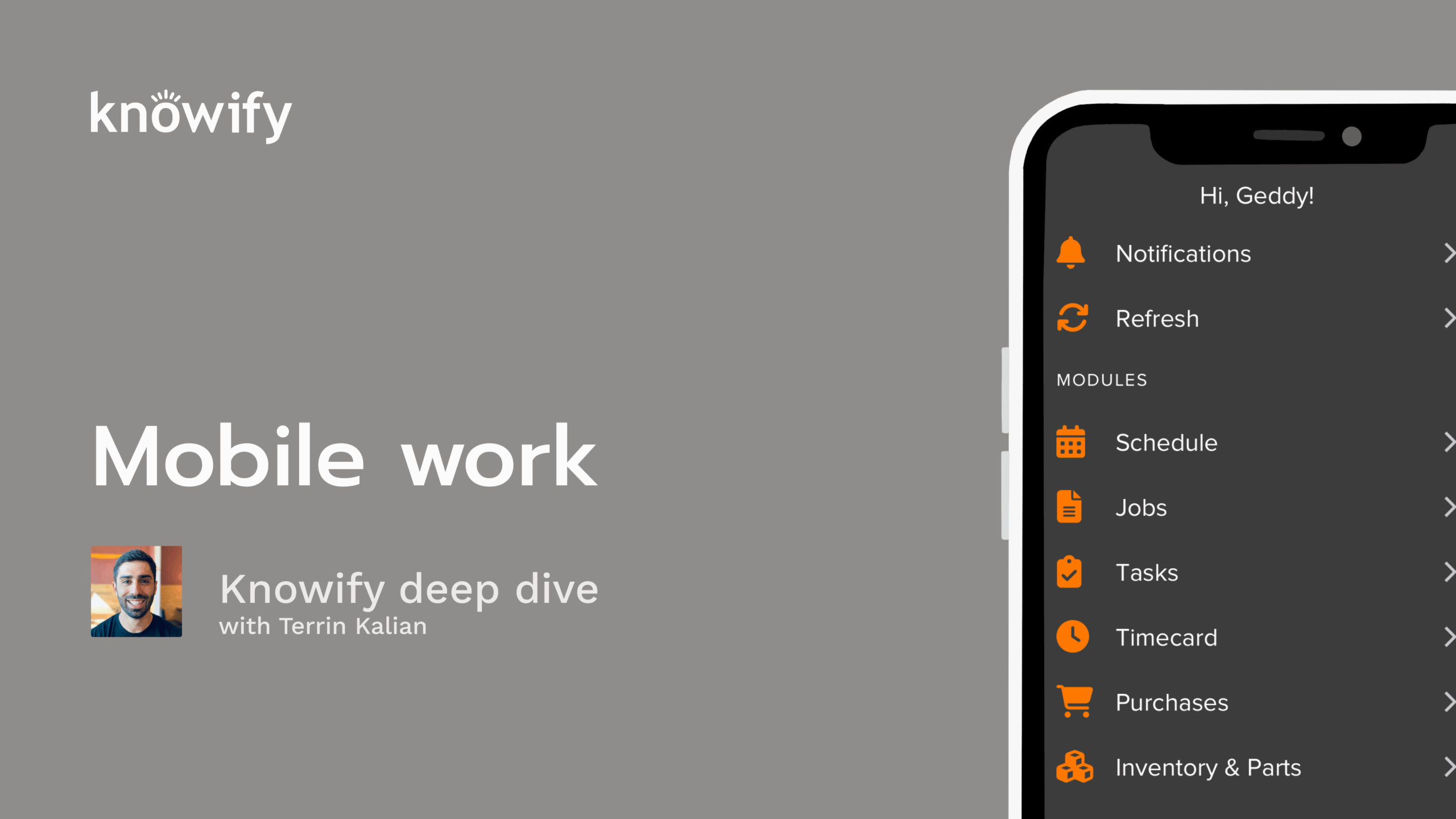
Okay. That makes the top of the hour, so I'll go ahead and get us kicked off. Thanks everyone for joining in today. I really appreciate people taking time out of their day to learn a little bit more about Noify. We obviously put a lot of work into Noify itself and putting these webinars together, so it's nice that people are joining in. It always means a lot to us to see good attendance and see that people are always interested and learn more about our system here. Today's topic in our series is on mobile work, and we're gonna be widely covering the smartphone app aspect of Nullify. So if you're familiar with Nullify, you're pretty well known that the web application can do a lot around our job management, tracking our costs, seeing our profitability of jobs, everything like that. But, one of the slick ways that we can get that information into your account is by, having people in the field enter things via their smartphone. And so this, webinar is gonna be covering, that side of the Novi process. And if you haven't, been to our Webinar in past, you're not familiar with me, my name is Taryn. I have been at Novi for over ten years now. Really just trying to make sure that everyone's as happy as possible with the system. There's a chance we've worked together in the past. I do a lot with our product team, taking in feedback. I like to jump in on customer calls, just kinda see how people are liking our system, things like that. So that's a quick little blurb about me. And to quickly cover the agenda for the day, I always like to start with some slides to cover a lot of the different topics. So we'll start with some information on what can we do with NoFi smartphone app because it obviously doesn't have as much functionality as the full browser version that you'll use on your computer. We'll also be covering some different things around time tracking, which is a big part of what is available on mobile, just making sure that people in the field can communicate how much time they've spent into the office. We'll also be covering how that affects project costing and other ways that project cost could be done via the smartphone app. So things like, different items purchased in the field, we might not wanna have to wait till that gets to the office. We wanna make it a little bit smoother. So how we can get costs into the, big version, big Noify, web Noify, from that mobile app. Then beyond all of the, basic input, covering things like project management, just communicating from the field into the office where you stand on a job at any point in time. I think that's a really handy part of the, mobile app, is just making sure that, there's a fast line of communication between what's happening in the field to, what's happening in the office. So that way, you don't have to do check ins and things like that, go out and search the site yourself. You can get that, straight line right from the field staff, into your, Notify web app. And I like to cover some of the things that are specific to Foreman when it comes to mobile, mostly just, the difference between a basic use of Notify versus the Foreman concept. Then I like to pull up a demo of nullify smartphone app, just kinda show you what this is gonna look like. I'll show you how this can be replicated on browser too in case everyone anyone's ever interested in see if I can make this a little bit more centered. If in case anyone's interested in learning about that, and then we do some q and a at the end. If you have questions through the webinar, just go ahead and throw them in Zoom's q and a. My associate, Vin, answers a lot of the questions through the webinar, and I'll cover a bunch of them at the end. And for what it's worth, just to clarify, no need to raise your hand during this. This is a purely one directional webinar of just me rambling at you guys about nullify. So, we don't take anyone off mute. It's just, as informational as it can be. But, again, if you do have questions, please throw them in that q and a because I'm always happy to answer them at the end. All that being done in introed, I just wanna kinda open up with this idea of what can you do with the smartphone app. And I like to kind of also specify because, I think this is always a a point of confusion. The smartphone app for Noify isn't meant to be a mobile friendly version of everything that could be done in Noify. It's really meant to be more of a communication tool. Here's what's happening in the field. Now the office is aware of it. So we can enter things from the smartphone app like our time, purchases that we, have made, materials that we've used maybe from our inventory. We can communicate via things like comments. We can upload images. Really just getting information that we're collecting from the job site and sending it into the office so it could be on file, and we can see what's happening on the job at any point in time. Then from more of a project management standpoint, we also have the ability to do things like view our schedule, view and create and mark, tasks as complete, just to make sure that we have individual to dos being crossed off the list as we go, and then communicate how far along we are on different parts of the project. So instead of just writing a comment, here's how far along we are, we can actually say this job is twenty five percent complete. Here are some images and, do some things that are very similar to what we'll see in our daily logs. And we actually, recently have added a lot more daily log functionality to the mobile app, which, is always really handy for people trying to, get those filled out and sent out to the necessary parties. You'll also see through this webinar, if you are roughly familiar with Noify in the past, that we recently did a pretty big remodel of our mobile app. So I'm excited to get to show you how this is looking now. A lot of the functionality is almost identical. We've just made it a little bit easier to navigate, so it's easier for people to learn how to use the mobile app without, too much training. Now, again, one of the major things we're doing, when using the mobile app is tracking time. Nothing really revolutionary. The concept of having a time tracking app, but, obviously, this being directly connected to our Noify, just kind of helps us get the fastest information as far as labor costing, goes into all of our projects. So as people in the field say, I spent eight hours, we know what their loaded labor burden rate is per hour, and we're updating the cost of the job to, represent how much we're spending on labor as people are entering time and actually, performing that labor on the job site. All the time, we'll go in for approval. So as I'm in the field submitting time, whoever's in charge of approving my time just gets to see a pop up. Here's something that needs approval, editing, things like that, which helps, again, just make sure that we don't have to do things like turn in paper time sheets, which then need to be entered, then need to be approved. It's more of just a straight line process. I enter time. Someone else approves it. All of the job costing is updated as we go. All of this is also meant to work as an offline, mode as well. So let's just say I work in locations where time isn't, where service isn't, very strong. As long as we have the information about the job loaded onto the phone ahead of time, I can check-in, check out. And then when I get back to a place with service, we'll get that time synced into the, office just so, we can make sure that we're paid for all of these hours and everything like that. And when we're tracking time, we'll always be able to see our scheduled jobs for each day. So if I, am using nullify scheduling, instead of having to, go through the process of, okay. But let me first go to my scheduling software, see what I'm supposed to be doing, go back to nullify, then find the job. To speed that process up, it just says, hey. Here's where you're supposed to be at nine AM. Perfect. At the address, I can actually up open that directly in Google Maps, Waze, Apple Maps, whatever you're gonna use. And from there, start the time clock, end the time clock when I'm leaving, switch to other jobs, things like that, just to make sure that, we're getting all that time in as quickly and easily as possible. When you check out, we'll also request things like comments. So, basically, instead of just having the generic, hey. I spent eight hours today. We're seeing that the eight hours is on a specific job, on a specific phase of that job for the sake of tracking cost versus budget, and then I can write a description. Here's what I did with this time entry in case everyone needs to, check that at a later date, maybe when a proven time. And time doesn't necessarily need to be check, tracked as a check-in and out. I can also just go to the app and say, enter four hours this job this phase, four hours this job this phase. I can just enter it as I go, if there's no requirements for time in, time out, in the specific companies. And one thing that's asked pretty often, we can enable this, if needed. You do have the ability to lock time tracking, so it has to be check-in and checkout so that you can't have manually entered hours and you don't have people who can check-in and check out in two minutes and call it eight hours. It makes it so all adjustments have to go through the office, give a little bit more stricter rules around time tracking there. Now aside from time, other costs that can be generated in the field are things like purchases. So I can actually, be in the field, go to Home Depot, pick up some supplies for a job, and just take a picture of the receipt and have that automatically, entered against the job in nullify. And we can categorize it just like we would in big nullify where I could say, this is spent on our Home Depot account. I'm using my company credit card. I used my own cash. I need to be reimbursed. Things like that just so all of this can be accurately keyed in from the job site and update all that information in the office. There is an approval status or process if needed. So you can say, hey. This person can enter as much as they want as long as it's under ten dollars per purchase. Then they have that ability to, when they go over this, automatically send it out for approval. Someone who is their direct manager can say that looks good with us. You get the email back. This has been approved, and that can be then purchased, and uploaded afterwards. And that does include the, again, uploading of the receipt itself, which is held on file in nullify. So if you need to reference that receipt, if something was entered incorrectly, anything like that, the image is available. So, you can actually see, what may have gone wrong or anything like that. Maybe you get audited in the future and you need to see that document. That is always available in Notify, at a future date. Aside from just entering purchases, though, if you have items in your inventory that are being used on job site and wanna track that without having to generate a fake purchase or anything like that, you have the ability to say, here are some items I used. I pulled them from this part of our inventory, and that'll take the items out of inventory, add the cost to the job, and have that all updated as you go, to make sure we really understand where we stand on the project and where we stand with our inventory as well. Then when it comes to more of the traditional project management, the idea of making sure that things get done, making sure they get done on schedule, things like that. Again, the mobile app has a lot of functionality to kind of help us get that communication back and forth. One side of this is communication from office to field. Here's what you're scheduled on. This is what we need you to be doing. Here's how long we expect you to be there. Here's a scope of work. Things like that, end up being really important just to make sure that the people in the field don't look, don't really, have a situation where they know where they're supposed to be but not what they're supposed to be doing. And, again, having that schedule really helps the process of time tracking as well. I can't recommend scheduling enough, when it comes to setting things up in Noify. And on each individual phase of a job, you can include a detailed work order to really say, here's the exact scope of what needs to be done when we're working on this project. From the mobile app, again, you also have the ability to create and manage tasks. So you could see what's assigned to you for what job, when it's due, things like that. So you can get an idea of a to do list. Here are some things that I need to mark as complete, and you have the ability to mark them as complete from the field, and it will send push notifications as well. If you're assigned a task, it pops up on your phone. You've been assigned a task for this job. Click here to learn more. You mark it as complete. It notifies the other person, hey. The task that you assigned to Terren has been completed. Again, just trying to get that back and forth communication, make sure everyone's, familiar with what's happening, on the job at any point in time. That's also where, uploading images comes in handy. If you need some pictures to, you know, tell a thousand words on what's happening on the job site, you have the ability to take pictures right through the app and have them automatically upload to the job. And kind of part of that is, the aspect of entering phase progress, which is the idea of, being able to say in a percentage or a number of units how much you've completed on a single day so that you can say, we are now twenty five percent complete as of this day and have all that tracked in the office for communication to the client for the sake of generating daily logs, things like that. And it can be accompanied with comments here with images, things like that that can, again, make sure we have everything on file. And I can look through the record of that job and know exactly where we stand at any point in time. Then a pretty common request that we always see when it comes to mobile is just basic communication. So instead of having individual specific things that we enter, so phase progress, uploaded images, tasks that are completed, sometimes we want to be more conversational. And so we have the ability to enter in comments and see a threading just like a text message thread of different parts of a, job. So we can, have a back and forth. We can tag people to send notifications. Hey. You've been tagged in this phase of this project. This is something that might require your review, and just, again, make sure that we have the whole story there on record. So, again, if we're looking at this project again in the future and we're thinking, well, how come this took longer, or how come this finished so quickly? We can look at the comments of what people were saying back and forth during this and see like, oh, I see. There was a rain delay. There was a safety incident. Things like that that'll then show up for the sake of us better understanding what actually happened when this job was underway. And then I mentioned the concept of the form and view. So a lot of what I've been mentioning is really available for anyone we need to have access to it. So I can say, you know, anyone can enter purchases. Anyone can enter their own time. But if we're in a situation where maybe we don't have the level of trust with everyone to enter that information or maybe we want everyone else to focus on work and only one person's in charge of entering information. You can give users, access to foreman permissions, which basically says instead of just being able to enter their time, they also have the ability to enter time on behalf of others. They can also then do things like entering, phases, adding new jobs, or adding new phases to jobs. So let's say I'm on a job site, customer comes up to me, scope of work changes, and I don't think it falls into any of our current phases or budgeting categories. I could say add a new phase. Maybe it's for something like a change order, and we can track the process of all this, outside of the original scope of work that was available in, our, project plan. So what I'm gonna do here I actually probably have a better way I can share this just to make sure that it looks as close to a mobile app as possible. I'm gonna pull up this website, phone dot nullify dot com, and this just replicates what's available on nullify smartphone app. And it's also useful if someone doesn't have space on their phone or they just don't really like downloading apps to their phone for whatever reason, you can always go to phone dot nullify dot com either on your browser, on your computer, or on your phone to get the simulated version of, what's available on the mobile app. And, again, if you're familiar with the older version of nullify, you could see that, some of the navigation has changed right off the bat. So, this would be things like, seeing the navigation at the bottom. We have home, jobs, time, and then more. We'll open up the old menu that used to be in the top left. Now we just have it here. And, again, a lot of this is just to make it a little bit zippier, so I could say. I'm just in the app for time. Click here. Now I could see time submitted today, this week so far, things like that. Makes it pretty quick and easy to say, oops. Forgot my time yesterday. It was eight hours. Here are the jobs I'm scheduled on. It was for this job. Write in the description of the work if I need and submit time. Now I can see nothing submitted today, eight hours so far this week, and have quick time entry that way. But what I'll see is that when I log in, this home screen is gonna show me my jobs for today. This is gonna show me the time that I'm expected at different jobs on three twenty six. I'm working on the finishing from seven to eleven. Now it's actually, one PM, and so I'm supposed to be working on the smartphone webinar project on demolition, from one to three. If I'm here, I can hit check-in. And at this point, it's going to take the user's time and location and start this clock, which we'll see throughout nullify. This timer is just gonna keep going. So if I am navigating through nullify, I could see how much time is, tracked since I checked in, and just kinda keep me going, through the, check-in of this, specific day. You can see it simplifies the home screen as well. So now we really just have a checkout button. I can obviously cancel. I can switch job if I need to. But this is just how we're tracking our time, and I can close out of the app, open it later. We can retain the check ins. We can see this and how long we've been submitted. And then whenever I'm done with my time for the day, I can hit checkout. And this is where, if allowed, I have the ability to make some adjustments. I was actually here for four hours. The issue is that I checked in late, and I could say, sorry about the late check-in. I got here and went right to work and have that time submitted into the office. I could see now this jumps me right to my time screen, so I could see here's your time submitted so far for the day. Here's the, total weekly time and just kinda get that summary as I go. And, again, if I ever need to manually enter time so we have four hours so far today. I can say, and I also forgot that I was on this other job earlier today. Submit. And seeing all this update, just so I know how much time I've submitted, and get a general idea of my time card. We also do show a summary. So if I wanna look in the past and see what's been submitted, you can see, obviously, I'm very bad about tracking my time here. But, we have this, ability to just see a more high level view of, whether or not I've submitted time on individual days to make sure that nothing falls through the cracks before payroll time. And with a, recent update, we also have the ability, if it's of any interest to anyone, to keep the, location tracking going through the, check-in and checkout time. In the past, know if I would only show check-in location and checkout location. Now we can actually bread crumb and show you, individual drops every five minutes while checked in. So if anyone is checking in, leaving the job site, and coming back, we'll be able to see that in real time. Now aside from just the time entry, we also have, as I mentioned earlier, the ability to enter, additional things like purchases. So if I buy something in the field, I can either say, add a purchase, this is gonna be paid for with company money, or add a reimbursement, This is something that, I actually, paid for with my own money. I'll say company money, and you see that we now have the ability to OCR in different, documents. So, again, small improvement that we made, but, you know, call it small but mighty. When we upload, receipts now, instead of just, uploading them and then having to manually, enter all of the data, you actually have the ability to, upload a image of the receipt. So let's say this is a receipt that I'm uploading here. I could say okay. And Notify is going to read all of that information and enter the information for you. So, again, just kind of a time saver, make it a little bit easier for people to get information in. You don't want them sitting on a job site all day just manually keying stuff in. And then they can specify if, the vendor's gonna invoice the company later on, if it's paid with company petty cash or a debit card or paid with a company credit card. I'll make this a simple cash purchase. You can see that it has all that information prefilled in. We could see what job it's for, all of this information. I can see the receipts, and I can enter a comment to go along with this as well in case there's any explanation. And I could see that this goes above my approval authority, so it's gonna require approval by Taryn. This user that I have technically isn't Taryn. And then I can, have that submitted and review the status later on. If I wanna see check my purchases, here's one that's pending approval. And then just for the sake of covering what this looks like, then in my purchases, I can see this, requires approval. This looks good to me from John, who is my mobile user. And I could check on this purchase now, and it's going to say that it's been approved and costed to the job. We can see that it's now been closed. And so we have that ability to just enter these purchases right from the field. Again, try to make that process as quick as possible to make sure that, everything's updating in real time, and we don't have too much additional entry needed, from the field. Similar to the idea of entering purchases, under more actions, I can, add parts. And, actually, let me take a step back really quickly. So, we always show this concept of checking in. If I just click on a job itself or if it's easier, go to jobs and search for jobs. Again, scheduled jobs always show up first, but I could say find job, three eighty, and see the different phases of this job that I can work on. I'm gonna stick with demo for right now, but I could say more actions, add parts. It'll ask what location I'm adding from. This is my warehouse. I could search for the different items that are in that warehouse, wire, and I used fifteen feet of wire. And submitting this will actually pull from my Nullify inventory and update the cost of the job to represent fifteen units of wire being added to the job as well. When opening up a job, you could see that there's also additional information like the job site address, which I can click on to open up in my navigation software. We can see documents that we've uploaded or that we need to upload. We can, check out tasks affiliated with this job. I need to perform precon site check, and it's due today. Mark this as complete. This is where we also can manage our comments, and we can, again, just get any of our basic, actions done, on this job as we go through. Another thing that can be pretty handy is the ability to check our schedule beyond just seeing what's scheduled at any point in time. And I could say schedule and scroll through a list of individual days. And if I need, I can zoom out a little bit more, or scroll through different, months, just to kind of see where we stand. And, like, if I wanna check my schedule, hey. I wanna know where I'm gonna be on July seventh. Perfect. Nothing's scheduled. Then we can get a little bit more information about where we stand, and what our upcoming schedule is. So nice little shortcut, and I can click on these things to pull up the job details from here as well. When we are entering things like comments, this is where we have the ability to tag specific people. So I could say, like, at Taryn. Sorry. I'm having an issue with my computer here. Here's some information you might need from the job site today, and I could send that message. And, again, this will notify that person, let them know, and have them link directly into here so they can respond back and just so we can see the office side of it. Here's the comment I can send something back at John. Thank you for letting me know. And we can always specify which phase of the job these comments are for just to get a little bit more granular in our threading and, feed of all the different comments. Again, with tasks, we can add we can mark things as complete. We could see upcoming tasks. I could see completed tasks from the past, but I also have the ability to add tasks from here. So I could say, order more wire, and this is due tomorrow. And I'm assigning this not to myself, but actually to Harry and Frank, whoever can get to it first, include additional, information, comments, things like that. And then I can add task, which will again send them a notification. I can see the upcoming task that I've created. And when they mark them as complete, it'll notify me that the task is completed. So, again, we have that back and forth a little bit, understand the process of, what still needs to be done, what has been done, what to do, things like that, as far as simple to dos go instead of full on project, completion. Another handy thing around all of this is the ability to share documents. So from our, documents in big nullify here, let me quickly upload a file. Yeah. I'll do one of these receipt images. I could say share with mobile, and then back on the mobile, I have the ability to go to documents and see that image automatically show up. But, again, I have the ability to upload from my photo library directly into the job here and have that automatically upload into the office and share with mobile so that the people in the office can see the different images that we've entered as well. Now we've covered this concept of, comments, image upload, things like that. And a lot of this is stuff that is, good communication for the sake of things like daily logging. And I'll get to the full daily logs update in just a bit. But a lot of this is related to the concept of phase progress where I could say, I'm on demo. I wanna enter how far along I am, and we could say progress in percentage or units, however this is defined. I could say I'm twenty five percent complete. We finished demo of cabinetry today, working on removal of appliances tomorrow. And, again, we can upload, documents or pictures to go along with this progress and just have this comment on file. So, again, it shows up in our project management for the people in the office so they can see, how much progress we've made each step along the way. But with our changes recently, on common request, we have the ability to actually generate daily logs directly from the smartphone app. So you'll see this daily logs option where it's gonna automatically generate things like, obviously, project name, but then pulling from project address, it'll get a weather report as well. I can include general notes. Today went very well. No issues. We can also double check the progress on phases that's been entered so far. And, if we need to make adjustments to this, add additional project, include phases that weren't initially referenced, we can put more progress in here. So, again, let's just say I forgot to enter the phase progress or, I need to, or I need to add something or I need to make adjustments, things like that, we can make it quicker just to go through the process of generating a daily log and enter it all at this point in time. We can also see who is on-site based off of who submitted time to this job today. I could see subs on-site and call out different subcontractors we work with. Ernie's Electrical was on-site, just so we have that, on record with the rest of the daily log. If I need to call other people, John Stamos came. It was wild. We can call that out as part of our daily log too. And we have a place that's specific for reporting safety incidents. So I could say, Eli was there. He was injured, hurt his hip on a funny fall, and include witnesses as well. I saw it, John. And make sure that we have all of these recorded, along with the daily log. We can also call out material deliveries so I can see here the different things that have been ordered, and I can call out which of them have been received so far. I can see the photos that have been uploaded, and, I can flag specific daily logs for attention. Things get automatically flagged when there's a safety incident. I know I said it went great, but Eli did get hurt. And so I have the ability to enter all of this, from the daily log. And then, again, just to show back in the office, I know we're mainly focusing on the mobile today, but just so we can see how it reacts in the office, I can see today, there's a submitted log from John. There was a safety incident. It's been flagged, and I could pull up that daily log. And if you haven't seen the new interface, this just what it looks like so we can see all that information and back and forth on how this went today, and if necessary, download a PDF of it. And so you could see how I generated this whole thing, from the, smartphone app without having to have someone in the office created based off the information that was entered in the smartphone app. So, again, previously, you could still enter a lot of this from smartphone, but then it would take somewhere in the browser to actually create the log. Now the log itself could be created via the mobile app to, save some steps and time. And I mentioned the idea of, foreman having additional capability on a job. And you'll see that when I'm on the home screen here, this specific user has this foreman ability where it says one resource is checked into one job. I can say, like, well, who's that? Looks like Laszlo is on three twenty six. I can go ahead and check him out. Oh, he's been checked in for over twenty four hours now. So let me go ahead and adjust that to the correct number. Submit. But, again, from here, I have the ability to view different jobs. Let me pull up my smartphone webinar, check all of the different phases. From here, I can add more phases. So I could say, change order for new lighting package, if spelled correctly, and have more phases added to the job. And then, again, I can pull up these specific phase that I was working on, see team activity. Here's his scheduled. Perfect. Frank just got here. Eli just got here, and Charles just got here, and we can start tracking their time as well. And just like with my own time, when I check out, I can make adjustments. Here's the, time that each of them submitted. But, again, what this gives you the ability to do is let people in the field, communicate on behalf of others. So let's say you don't wanna give everyone access to Noify. You wanna limit who sees what, who has what power in Noify. You can just give one trusted person ability to enter time on behalf of the rest of the team and still get just as detailed information into the office. Then, again, if I go check on this job to kinda see how it's been going, in my plan and track section, I'll be able to see a updated cost to date that breaks down to materials and labor. I could see my production tracking that's updated. I could see my materials that have been entered, both via purchase and via warehouse. I could see the labor that's been submitted so far. And all of this is done without me actually being on the browser entering information, on behalf of people, but it's just, one guy in the field who's just communicating. Here's what's been going on in the, field. I need the prod the, office to be aware of it. And another thing that ends up being handy from the, mobile app just to keep things organized is once I'm done with, my, individual phase of the job, I can mark them as closed so that we can essentially cross this off of our list, and then I can see the space status. This is now closed, and I can start worrying about the next things that are up and coming. So, again, we have the ability to have that task management where we mark individual to dos as complete. But then when we have larger milestones, demolition, I can mark from the field. We've now completed demolition. We're moving on to rough in. One last thing I wanna show that's relatively on the new side, maybe in the last year or so, but, has always been commonly asked about, so I like to make sure that we show this, is that we now have the ability to generate service jobs from the field. So if I have staff that get, called out to a job site, let's just say, I was already out and about, and, Calvin called me up. I went to his address, and I performed some fixed price work. It was, let's just say, insulated coffee cup because why not? Probably something else I created from a webinar because I always have my insulated coffee cup on me. And we can create service quotes from the field as well. Then I can schedule myself. I'm gonna be doing this today from let's just say, let me go to PM since it's the afternoon, and I'll be here from two until three. Perfect. And I'll schedule myself, who is, in this case, John. And I can generate my, service jobs from the field without having to ask anyone in the office, and I could share that quote for signature via text, SMS, via email, or I can actually open that signature link right here and have someone, sign off just by handing over the phone or tablet, whatever I'm using. So they could say, this looks good, esign here, and have that, uploaded into the office as well. That probably covers just about everything I wanted to show with the demonstration aspect of this webinar, but I did see some questions come in. So I want to make sure I do my best to tackle those while we still have some time at the end here. And the first question is about, is there a feature that has people check out specifically for lunch breaks and record the time that way, which I know is very popular in California for the labor and time tracking laws there? And while we don't currently have a specific feature for it, you do have the ability to set up an internal project for lunch breaks, and people can switch job instead of checking out and checking in. You can just say switch to lunch, switch back, things like that. But we do know that some people don't like that because it still shows as normal time entries for lunch as opposed to a break. So we are discussing internally with the rest of the product team the idea of having a more automated feature for this. So while today, we might not have a very elegant solution, we do expect to have something like that in the not too distant future. So stay tuned. Stay with us for you a little bit, and, we can have something a little bit strong for you in the future. There's a follow-up question of if there's a plan to add more mobile capabilities for admins, as opposed to fields, just having the field version. We may look into something like this in the future, but one, big project we undertook a couple years back is, optimizing the browser version of Noify for a mobile sized screen. So anything that you can do on your computer, if you go to Noify so, you know, it's secure dot noify dot com. But if you log in to Noify on your phone's web browser, you should have all the same level functionality as if you logged in on your computer. If you're like me and you don't personally love using a, mobile, browser, know, you might not you might find that it's not quite as user friendly as, being on the computer itself. But if you're in a pinch and you actually need to get things done, everything is possible. So I highly recommend looking into that. Again, we spend a lot of time and effort making sure that's as optimized as possible. So it's a much smoother process than you'd expect. So definitely check that out if you have time. When using the daily logs and incident portion, when something is flagged, where does that flag show? That's a good question. So, there is no email affiliated with it. But when we look at the daily logs, we could see the flag icon on the specific daily log. And if I need, I can actually say, show me flagged logs only, just to make it a little bit easier to see all of that, all of my safety incidents or flagged daily logs, on a specific job. And so we do filter those out. And as far as automated emails go, nothing for that yet, but we do have a Zapier integration that triggers when you submit a daily log. So you should have the ability to build something out with Zapier that says, hey. When someone spits a daily log, if there's a flag on it, email this person. All of that's very doable with our recent updates, so definitely check that out if, it's something you're interested in. And if that's something that, you're having a hard time setting up, don't be shy about reaching out to me. I'm always happy to help people set things up with Zapier and make sure that they're automating as much as possible. There is a follow-up question of, are we looking into implementing geofencing and automatic tracking? At this point in time, we likely won't have anything for when I walk into site, it automatically tracks my time. And then when I leave, it automatically checks me out, for a variety of reasons. Mainly, it takes a lot of it takes a lot of data and cell power to be constantly tracking people and then automatically check them in when they cross a certain, border. It's not outside the realm of possibility as much as it's not always as smooth as people want it to be, especially with how, finicky some location services can be. You know, it's not uncommon for me to check-in from my house, and it shows me down the street somewhere. And so we wouldn't want some situation where because of a job site has bad service, people can never track time because it won't automatically recognize them as there. But, again, we did change, make a change that is automatically taking location every five minutes. So if you have concerns about people being at job sites and you do wanna check those location services, it is possible to it is possible to see where they were over the course of a day. And then the last question is about daily logs being available on contract jobs versus service jobs. I believe at this point in time, we are still only managing daily logs for contract jobs, mostly just because there's a little bit more to enter around, percent of completion, phase management, progress through the life of a job. But service jobs do have service summaries that could be generated. So when you mark a service job as complete, you could still see information like the work order, notes from the, technician, time submitted, and hand it off to a, to a customer for a finger signature, and that, will be stored on file with the service job if needed. That looks to be the last question that came in. Someone asked about getting this email. Just to clarify, anyone who's in here most likely was registered for the webinar. And if you're registered, then we do email you a recording when we're done. So if you wanna review this back, share it with other people who are gonna be in the field using the mobile app, anything like that, you should have the ability to get that recording. And then we do host them all on our webinar page, as soon as they're ready as well. So, any questions, again, never be shy about reaching out to me or our support team or success manager. We wanna be as available as possible, as communicative as possible. So never be shy about reaching out to us. We're happy to hear from you, and we're always happy to help. Thanks everyone again for joining in. I hope you have a great rest of your week. Take care.